Verdict at the top: A vanilla Laravel application — controllers, Eloquent, Blade, Livewire, file-based cache and sessions, a cron-driven scheduler — runs perfectly well on Domain India shared cPanel, DirectAdmin or Webuzo hosting. Where it breaks is the Laravel features that need long-running processes: Octane, queue workers, Horizon, Reverb websockets and Redis. Those need a VPS. This article shows you how to ship the parts that work, and tells you straight when you have crossed into VPS territory.
Vanilla Laravel with Blade, MySQL and a cron-driven scheduler runs fine on shared hosting. Octane, queue:work daemons, Horizon, Reverb and Redis do not: they need persistent processes that the CloudLinux sandbox stops. Jailed SSH is available on every Domain India shared plan on request, and you can run Composer there as composer.phar (with --no-scripts if it stops with a proc_open message), or build on your computer and upload. Move to a VPS the moment your app needs real queue workers, sub-minute jobs, websockets or Redis.
1. What works and what doesn't — the honest table
| Feature | Shared (cPanel / DirectAdmin / Webuzo) | VPS |
|---|---|---|
| Vanilla Laravel app (web routes, controllers, Eloquent) | Yes | Yes |
| Blade templates, Livewire, Inertia | Yes | Yes |
| MySQL from the control panel | Yes | Yes (you install it) |
File-based cache and session drivers, sync queue | Yes | Yes |
Mail through PHP mail() with an envelope sender | Yes | Yes |
| Laravel's SMTP or sendmail mail transport | Usually no (socket and process functions are disabled) | Yes |
Cron-based scheduler ( *) | Yes, for closures and queued jobs | Yes, for everything |
| SSH access | Jailed shell on every plan, off by default (ask support) | Yes (root) |
| Composer on the server | Yes, as composer.phar over jailed SSH; add --no-scripts if it stops with a proc_open message (or build locally and upload vendor/) | Yes |
Queue: php artisan queue:work as a daemon | No (long-running PHP is stopped) | Yes |
| Laravel Horizon | No (needs queue workers and Redis) | Yes |
| Redis cache, session or queue | No (no Redis daemon on shared) | Yes |
| Laravel Octane (Swoole / RoadRunner / FrankenPHP) | No (long-running daemon) | Yes |
| Laravel Reverb (websockets) | No (long-running daemon) | Yes |
| Sub-minute scheduled tasks | No (the shortest cron interval is 4 minutes) | Yes |
| Remote Database Access from your desktop on port 3306 | No (firewalled; use an SSH tunnel) | Yes (you configure it) |
| Custom system libraries (FFmpeg, custom ImageMagick builds) | No (only what the panel offers) | Yes |
If everything you need is in the shared column, stop reading here, deploy with Path A or Path B below, and ship. If two or more of the "No" rows matter to your app, get a VPS. The intermediate "I'll work around it on shared" path almost never ends well, and the next two sections explain why.
2. Why long-running processes don't work on shared hosting
This is the part most Laravel tutorials skip. Shared cPanel and DirectAdmin accounts run inside a CloudLinux LVE (Lightweight Virtual Environment): a kernel-enforced sandbox that limits each account's CPU, memory and process count, and reaps processes sitting around outside the web server. Your plan's CPU and RAM allowance is on its plan page.
A worker like php artisan queue:work is, by design, an infinite loop: it waits for jobs, processes them, then waits again, forever. The sandbox treats that as abandoned and stops it. Connect over SSH, start a worker, and watch it disappear a few minutes later. The same applies to Reverb's websocket daemon, Octane's Swoole, RoadRunner and FrankenPHP servers, and any custom long-lived script.
There is a second limit, and it catches more people than the first. Shared hosting also disables a set of PHP functions for security, including the process functions (proc_open, popen, pcntl_fork) and the socket functions (fsockopen, stream_socket_client). Laravel needs them in more places than you would expect: starting queue workers, running scheduled artisan commands, sending mail over SMTP, and in Composer scripts. The full list is in PHP disabled functions on shared hosting.
Cron jobs do run, because they exit quickly. The Laravel scheduler line everyone uses is:
* * * * * cd /home/youruser/laravel-app && php artisan schedule:run >> /dev/null 2>&1That works because schedule:run exits within a fraction of a second after dispatching what is due. It is the workers — schedule:work, queue:work, Horizon supervisors — that do not survive. Section 5 covers a further catch in what schedule:run is then allowed to start.
3. What about queue:work --once from cron?
People ask this every month. Yes, * * * * * php artisan queue:work --once in cron works as a stopgap: it processes one job per cron run, which is every 4 minutes on Domain India shared servers. For a side project with five jobs a day that is fine. For anything needing concurrency or any real-time response it is a trap, and on some servers the command itself fails with a "disabled for security reasons" error, in which case set QUEUE_CONNECTION=sync and let jobs run inside the request.
Where it falls over: a one-time password or password reset that arrives a minute late; a failed-payment retry your customer will not wait for; an order that feels a minute slower because the capture and fulfilment jobs are queued; a webhook that fans out to four jobs and therefore takes four minutes. If any of those describe your app, you have already crossed into VPS territory. Do not fight the cron-once pattern.
4. Deploying Laravel: two paths
If you are new to Laravel on shared hosting, start with the beginner guide, How to install Laravel using Softaculous, which walks through the one-click install and the upload route in more detail. The two paths below are the production versions of the same idea.
Path A — build on your computer, upload the artifact (works on every plan)
This is the most reliable route, because all the Composer work happens on your own machine and the server only has to run PHP.
- Build the production artifact on your development machine:
bash composer install --no-dev --optimize-autoloader npm run build php artisan config:cache php artisan route:cache php artisan view:cache php artisan event:cache - Zip the project, including
vendor/and excluding.git/,node_modules/,tests/, your development.env, and the contents ofstorage/logs/andbootstrap/cache/(keep those folders, clear what is in them). - Upload with File Manager. Upload the zip to
/home/YOURUSER/laravel-app/, deliberately outsidepublic_html, and use Extract. Move only the contents oflaravel-app/public/intopublic_html/, then editpublic_html/index.phpand change the tworequire __DIR__.'/../...'lines to point at../laravel-app/bootstrap/app.phpand../laravel-app/vendor/autoload.php. The point of this layout: your app code,.env,vendor/, models and routes all live outside the web root. Onlypublic/is reachable from the internet. - Set permissions.
text storage/ 755 (or 775 if your server needs group write) bootstrap/cache/ 755
Setting a folder to 777 makes it writable by every account process on the server, and it is one of the most common ways a shared-hosting site gets defaced. Use 755 for folders and 644 for files. If Laravel still cannot write, open a ticket and we will check the ownership rather than loosening the permissions.
- Create the production
.envin/home/YOURUSER/laravel-app/, not inpublic_html/: The cache, session and queue drivers are file-based, which is what shared hosting supports.QUEUE_CONNECTION=syncruns jobs inside the request that dispatched them — the right default for a low-traffic app. (Older Laravel releases useCACHE_DRIVER; follow your version's.env.example.) Mail settings are in section 6.ini APP_ENV=production APP_DEBUG=false APP_URL=https://yourdomain.com DB_CONNECTION=mysql DB_HOST=localhost DB_DATABASE=youruser_dbname DB_USERNAME=youruser_dbuser DB_PASSWORD=yourdbpassword CACHE_STORE=file SESSION_DRIVER=file QUEUE_CONNECTION=sync - Generate the key, migrate and link storage. Over SSH, in the project folder: Run these only if jailed SSH is enabled on your account; otherwise use the fallback below.
--forceis required whenAPP_ENV=production. Useln -srather thanphp artisan storage:link, because the artisan command relies on a PHP function that shared hosting disables. Ifphp artisanwill not run at all on your server, generate the key locally withphp artisan key:generate --showand paste it into the server's.env, run the migrations against a local database, and import the resulting.sqlfile with phpMyAdmin.bash php artisan key:generate php artisan migrate --force ln -s ~/laravel-app/storage/app/public ~/laravel-app/public/storage
Path B — Git over SSH, with vendor/ built on your computer
Jailed SSH access is available on every Domain India shared hosting plan (cPanel, DirectAdmin, Webuzo), including the entry-level Starter plans. It is off by default; ask support to enable it for your account: see How to set up SSH access on shared hosting. Login is with an SSH key on port 22; password login is switched off. Git is available inside the jail on our cPanel servers; on other servers, ask support which tools your jail has. In this path the vendor/ folder comes from your computer; you can also build it over SSH with composer.phar, as the callout below explains.
On the server:
ssh [email protected]
cd ~
git clone https://github.com/you/yourapp.git laravel-app
cd laravel-app
cp .env.example .env
nano .env # fill in production values (see Path A, step 5)On your computer, in the same project, build the dependencies and copy them up over SFTP (or zip vendor/ and extract it with File Manager):
composer install --no-dev --optimize-autoloader
scp -r vendor [email protected]:laravel-app/Back on the server:
cd ~/laravel-app
php artisan key:generate
php artisan migrate --force
ln -s ~/laravel-app/storage/app/public ~/laravel-app/public/storage
php artisan optimizeThen, in your control panel's domain settings, point the document root for your domain at /home/youruser/laravel-app/public/. Or rename public_html and put a symbolic link in its place:
mv ~/public_html ~/public_html.old
ln -s ~/laravel-app/public ~/public_html
Redeploys become git pull on the server, a fresh upload of vendor/ from your computer whenever composer.lock has changed, and then:
cd ~/laravel-app
git pull
php artisan migrate --force
php artisan optimizeComposer isn't pre-installed, but over jailed SSH you can download composer.phar and run php composer.phar install --no-dev --optimize-autoloader. Its scripts, such as Laravel's package:discover, need proc_open, which shared hosting disables for PHP on the command line as well as the web, so if the install stops with a proc_open message, run it again with --no-scripts and then run php artisan package:discover. Or run Composer on your computer and upload the finished vendor folder. Nothing is wrong with your account; this is how the server is hardened.
Database, remote access and backups
Create the database and its user in your control panel, then use that name and password in .env. Two practical points:
- MySQL port 3306 is closed from the internet on every Domain India shared server. A desktop client such as TablePlus, DBeaver or MySQL Workbench cannot reach it directly. Connect through an SSH tunnel on port 22 instead: see Securing MySQL access with SSH tunnels. Some panels also offer a remote-MySQL allow list, but the server firewall may still block the connection.
- Backups included with shared hosting are weekly. That is a safety net, not a deployment strategy. Keep your code in Git, and take your own database export before every migration that changes an existing table.
5. The scheduler, and the two things that break it
The Laravel scheduler is the one almost-long-running thing that does work on shared hosting, because cron invokes it and it exits immediately. Add one cron job in your control panel:
* * * * * cd /home/youruser/laravel-app && php artisan schedule:run >> /dev/null 2>&1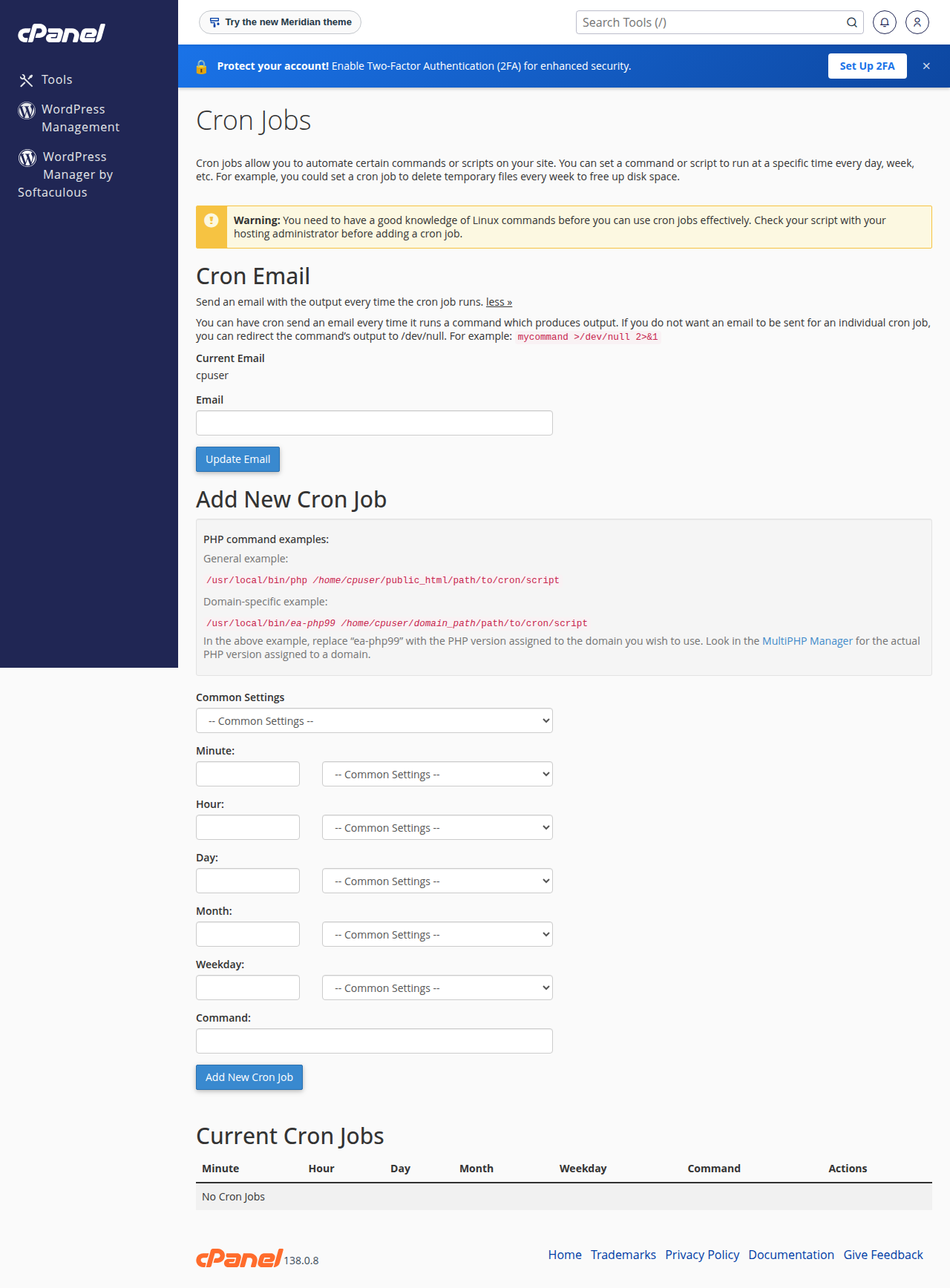
Two caveats:
One-minute granularity. ->everyTenSeconds() and ->everyThirtySeconds() look like they should work, but they depend on the schedule:work daemon, which is a long-running process and gets stopped. On Domain India shared hosting the shortest cron interval is 4 minutes: a * * * * * line is changed to */4 * * * * automatically, so schedule:run runs every four minutes and a task set to ->everyMinute() runs at that pace.
Scheduled artisan commands may not start. Schedule::command(...) launches each command as a separate process, which needs proc_open. Where that function is disabled, those tasks silently fail to run. There are two workarounds: use Schedule::call(...) closures and Schedule::job(...), which run inside the same process; or give each command its own cron line, since cron starts the PHP binary directly and does not need proc_open.
6. Mail: use PHP mail() with an envelope sender
This is where a lot of Laravel deployments on shared hosting quietly break, and the usual advice — "just configure SMTP" — is the wrong advice here.
Modern Laravel sends mail through Symfony Mailer. Its SMTP transport opens a socket (stream_socket_client) and its sendmail transport starts a process (proc_open). Both function families are disabled on shared hosting, so both transports fail with a message such as stream_socket_client() has been disabled for security reasons. PHP's own mail() function is not affected and keeps working.
Two routes actually deliver:
The envelope sender matters as much as the transport: pass -f with an address on your own domain, so SPF is checked against your domain and not the server's hostname. The full explanation, with working code for both routes, is in PHP sendmail settings — read it before you write your mailer. Then publish SPF, DKIM and DMARC records: Email deliverability: SPF, DKIM, DMARC and BIMI.
In a contact form, put your own address (for example [email protected]) in From and the visitor's address in Reply-To. Sending as a gmail.com or outlook.com address you do not own fails SPF and DMARC, and the message is rejected or filed as spam.
On a VPS or on the App Platform, where nothing is disabled, Laravel's normal SMTP transport works exactly as the documentation describes.
7. Performance on shared hosting — what to expect
Our shared cPanel, DirectAdmin and Webuzo servers run the Apache web server on NVMe storage, with a choice of PHP versions you select in the control panel. A Laravel app whose caches have been warmed by php artisan optimize is comfortably fast enough for a brochure site, a small SaaS dashboard or an internal tool.
What actually makes Laravel feel slow on shared hosting, in the order we see it:
- Forgetting
php artisan optimizeafter a deploy. Without the config, route and view caches you pay a bootstrap penalty on every request. - N+1 query bloat. Eloquent's lazy loading makes this trivial to introduce. Install Laravel Debugbar in development, watch the query count on your heaviest page, and eager-load with
with(). APP_DEBUG=truein production. It builds a stack trace on every error, disables several caches, and shows your configuration to anyone who can trigger an error. Set it tofalse, always.- Shipping the development asset build.
npm run buildproduces fingerprinted, minified files;npm run devproduces hot-reload assets that expect a Vite server. Make sure the deploy carries the build output.
For page caching, use a framework-level full-page cache or a PHP caching package. Do not follow tutorials that tell you to install LiteSpeed Cache: our shared servers run Apache, not LiteSpeed.
If you have done all four and still see multi-second responses, your app is doing too much per request, or you have outgrown shared hosting.
8. When to move up: VPS or App Platform
Concrete signals. If two or more are true, upgrade now:
- You need real queue workers — Horizon, or anything beyond
--oncecron polling. - You need Redis for cache, session or queue.
- You need Octane for performance, or Reverb for websockets.
- You are seeing "resource limit reached" notices, or your resource graphs sit near the ceiling.
- You need scheduled jobs more often than every 4 minutes, or scheduled artisan commands that will not start.
- You need system libraries the control panel does not offer.
- Your team uses a Forge or Envoyer style deploy workflow and wants to keep it.
A VPS gives you root, so all of that simply works. A sensible Laravel VPS is Nginx with a current PHP 8.x FPM pool (or Caddy if you want automatic certificates), MySQL or PostgreSQL, Redis for cache, session and queue, Supervisor watching php artisan queue:work or Horizon, and one cron line running schedule:run every minute — still the right pattern even here. If you go the Redis route, read Laravel Redis cache tags and stampede prevention before you put it in front of a busy page.
If you would rather not become a system administrator, the App Platform is Domain India's container hosting: connect a GitHub repository and click Deploy Now, or upload with a deploy token from your CI. Pushing to GitHub does not deploy by itself. Node.js apps are detected automatically; a Laravel app needs a Dockerfile. Every plan includes automatic SSL, custom domains, logs and a PostgreSQL database (not MySQL), and each app gets 512 MB of RAM, so check that your app fits before you move a heavy one across. See App Platform: getting started.
9. Common errors and what they actually mean
file_put_contents(...): failed to open stream: Permission denied — almost always storage/logs/laravel.log or bootstrap/cache/. Set storage/ and bootstrap/cache/ to 755 (or 775) recursively and check the files are owned by your hosting user. The longer could not be opened in append mode variant is the same problem.
No application encryption key has been specified — you skipped php artisan key:generate, or .env is missing entirely. Never regenerate the key on a live site: it logs every user out and makes anything encrypted with the old key unreadable.
SQLSTATE[42000]: Specified key was too long — an older MySQL with utf8mb4 and a migration indexing a long string column. In app/Providers/AppServiceProvider.php, inside boot():
use Illuminate\Support\Facades\Schema;

Schema::defaultStringLength(191);
Then re-run the migrations.
HTTP 500 with a blank page — APP_DEBUG=false is hiding the cause, which is correct for production. Read storage/logs/laravel.log, then the error log in your control panel. If both are empty, set APP_DEBUG=true, reload once, read the trace, and set it straight back to false.
stream_socket_client() has been disabled for security reasons — Laravel's SMTP mail transport on a server that disables socket functions. See section 6.
proc_open() has been disabled for security reasons — a Composer script (re-run with --no-scripts), a scheduled artisan command, or the sendmail mail transport. See sections 4, 5 and 6.
pcntl_fork() has been disabled for security reasons — Horizon or a queue worker tried to fork a child process. This workload needs a VPS.
symlink() has been disabled for security reasons — php artisan storage:link. Create the link over SSH with ln -s instead.
Class "Redis" not found — your .env points cache or session at Redis, but there is no Redis server and no PHP Redis extension. On shared hosting, switch those settings back to file.
Maximum execution time exceeded and Allowed memory size of ... bytes exhausted — the request needs more time or memory than PHP allows. You can often raise both in your control panel's PHP settings, within what your plan allows, but there is a server-side ceiling. The better fix is usually to stop loading a whole table into memory, or to move the heavy work into a queued job.
Class 'finfo' not found and similar — a PHP extension is not switched on. On cPanel the extensions are a server-wide set you can't switch on yourself: to check, upload a file containing <?php print_r(get_loaded_extensions());, open it, then delete it, and if the one you need is missing, open a ticket naming the extension and the PHP version. DirectAdmin and Webuzo have their own extension settings. The hosting compatible technologies list shows what is available.
10. Where Domain India fits
Every Domain India shared hosting plan — cPanel, DirectAdmin and Webuzo — includes a choice of PHP versions, MySQL databases with phpMyAdmin, cron jobs, free SSL and backups (weekly on cPanel and DirectAdmin, nightly on Webuzo). Jailed SSH access is available on every plan, including the entry-level Starter plans; it is off by default, so ask support to enable it. Composer isn't pre-installed, so run composer.phar over SSH or build your vendor/ folder locally. Prices below exclude 18% GST and are Domain India list prices on 20 September 2026.
Shared hosting is the right home for a Laravel app that serves pages, talks to MySQL and sends a reasonable amount of mail:
- 25 GB NVMe SSD Storage
- 50 GB Monthly Bandwidth
- 1 Website
- 10 Email Accounts
For container deploys from GitHub or CI with automatic SSL, without running a server yourself, the App Platform sits between shared hosting and a VPS:
- 512 MB RAM per app
- 1 vCPU
- 5 GB NVMe SSD
- PostgreSQL Database
And if your app needs queue workers, Redis, Octane or Reverb, a VPS is the honest answer:
- 1 vCPU
- 2 GB DDR4 RAM
- 64 GB NVMe SSD Storage
- 2 TB Monthly Bandwidth
Not sure which side of the line your app is on? Open a ticket at /support/ticket with your composer.json and a short description of the features you rely on, and we will tell you straight whether shared hosting is enough. Live chat is available 24/7. We do not offer phone support.
Do I need a higher hosting plan to get SSH for Laravel?
No. Jailed SSH access is available on every Domain India shared hosting plan, including the entry-level Starter plans on cPanel, DirectAdmin and Webuzo. It is off by default; ask support by live chat or a ticket to enable it, and log in with an SSH key. Composer isn't pre-installed, but over SSH you can download composer.phar and run it with php, adding --no-scripts if it stops with a proc_open message, or run Composer on your own computer and upload the project with its vendor folder.
Why does Laravel mail fail with "has been disabled for security reasons"?
Laravel sends through Symfony Mailer, whose SMTP transport needs socket functions and whose sendmail transport needs process functions. Shared hosting disables both families for security. Use a small custom transport that calls PHP's mail() function with the -f envelope sender, or a transactional email API over HTTPS. PHP mail() itself is not disabled and keeps working.
Does Laravel Octane really not work at all on shared hosting?
Correct. Swoole, RoadRunner and FrankenPHP all run as long-lived daemons that bind a port, and none of that is permitted inside the CloudLinux sandbox that shared accounts run in. Octane is a VPS feature.
Can I run Horizon if my queue volume is tiny?
No, regardless of volume. Horizon is a supervisor process managing queue workers, and the supervisor itself is the long-running thing that gets stopped. It also needs Redis, which shared hosting does not provide. If a few minutes of delay is acceptable, use a cron-driven queue:work --once, or set QUEUE_CONNECTION=sync so jobs run during the request.
Can I connect to my hosting database from MySQL Workbench or TablePlus?
Not directly. MySQL port 3306 is firewalled on every Domain India shared server. Open an SSH tunnel on port 22 and point your client at the local end of the tunnel. Jailed SSH is available on every shared plan; ask support to enable it.
Can I use Laravel Vapor with Domain India?
Vapor deploys to AWS Lambda, so it is a serverless setup rather than hosting on our servers. You can keep your domain and your email with us and run the app on Vapor; we simply will not be the hosting provider for that application.
I'm on Laravel 11 or 12. Does that change anything?
No. The threshold is the workload, not the Laravel version: anything needing a persistent process, Redis or a disabled PHP function needs a VPS, and everything else runs on shared hosting. Check your control panel for the PHP versions available and match your composer.json to one of them.
Do Livewire and Inertia work on shared hosting?
Yes. Livewire is ordinary request and response traffic over AJAX with no long-lived server process, and its polling features work too. Inertia is a thin protocol over standard Laravel responses, with the heavy lifting done in the browser. The exception is Inertia server-side rendering, which runs a persistent Node process and needs a VPS.
Forge, or a do-it-yourself VPS?
Forge is a paid monthly subscription that provisions and deploys to a server you own, including one of ours. If more than one person touches the deploy it usually pays for itself in saved system-administration time; if you work alone and like Linux, a plain VPS costs less. Both work on a Domain India VPS.
Ready to deploy? Start with the beginner walkthrough in How to install Laravel using Softaculous, compare cPanel, DirectAdmin and Webuzo hosting for a standard Laravel app, look at the App Platform for container deploys, or move up to a VPS if you need queue workers, Redis or websockets. If you are not sure which fits, open a ticket and ask.
A Domain India VPS gives you full root access, KVM virtualisation, NVMe storage and your choice of Linux, so Redis, Supervisor-managed queue workers and websockets all run exactly as the Laravel documentation describes.
See VPS plans