As a Domain India reseller, you don't have to build a backup system for your clients: JetBackup 5 already backs up every account on the server each week. Your job is to know where those backups are, how to restore a client's files, database or email when something breaks, and what to tell clients about backups. This guide covers that for cPanel/WHM reseller plans, with a short section for DirectAdmin resellers.
JetBackup 5 takes a weekly backup of every client account on Sunday and keeps five copies. To restore, open the client's cPanel from List Accounts in WHM, open JetBackup 5, pick what to restore and a date, and choose Restore or Download. cPanel's own Backup and Backup Wizard are switched off, and restoring a whole account from a backup file in WHM is a server-owner function, so ask support for that. Tell your clients the backups are weekly and that they should keep their own copies too.
1. What is backed up, and how often
| Item | On Domain India reseller hosting |
|---|---|
| Tool | JetBackup 5, on our cPanel and DirectAdmin servers |
| Schedule | Weekly, on Sunday |
| Copies kept | The last 5 weekly backups |
| Covers | Every client account: files, databases, email and settings such as cron jobs and DNS zones |
| Price | Included; there is no separate backup add-on |
There are no hourly or daily backups on any reseller plan. The newest backup can be up to a week old, so a client who changes their site every day, for example a shop taking orders, should also keep their own copies (section 6).
2. What changed from older guides
Older WHM guides describe tools you won't use on our servers:
- cPanel Backup and Backup Wizard ("Download a Full Account Backup", "Generate Backup") are switched off. JetBackup 5 replaces them.
- Transfers › Restore a Full Backup/cpmove File in WHM is a server-owner (root) function. Reseller accounts on our servers don't have it. To restore or move in a whole account from a backup file, open a ticket.
- Partial restores through cPanel's Backup page (uploading a home directory or
.sql.gzbackup) no longer apply; restore from JetBackup 5 instead, or import a database file in phpMyAdmin.
3. Restore a client's files, database or email
The dependable route is through the client's own cPanel, which you can open from WHM without their password.
- Open the client's cPanel.In WHM, go to List Accounts, find the account and click the cPanel icon next to it.
- Open JetBackup 5.It is in the Files section, or type "JetBackup" in cPanel's search box.
- Pick the type.Choose what to restore: full account, home directory (files), databases, database users, email, cron jobs, DNS zones, SSL or FTP accounts.
- Pick the date.Choose a backup from before the problem started, then select the file, folder, database or mailbox.
- Restore.Confirm, and the job joins JetBackup's queue. Wait until it shows as complete before you test the site.
Restoring a database replaces the current one, and restoring files replaces the current copies. New orders, posts or emails since the backup date can be lost. Download the current state first if the client might need anything from it, and restore only the part that is broken.
Some reseller accounts also see JetBackup 5 in their WHM sidebar, which lets you work across your accounts in one place. Whether it appears depends on the privileges attached to your reseller account; if you don't see it, use the client's cPanel as above. The full restore guide is restoring backups in JetBackup 5.
4. Download a backup for safekeeping
In the client's cPanel, open JetBackup 5, pick Full Account (or the part you need) and a date, and choose Download. JetBackup prepares the file in the background; when it is ready, save it from JetBackup's downloads list. A full account download is a compressed archive with the files, database dumps and mail inside.
Downloading through JetBackup avoids upload and PHP size limits entirely. See how can I download a backup of my site.
5. When to ask Domain India support
Open a ticket when you need:
- a whole account restored from a backup file, or an account moved in from another host;
- an account back after it was terminated by mistake. Ask straight away; whether it can be recovered depends on the backups still held, and they roll over after five weeks;
- help with a restore that fails or stays in the queue;
- anything that affects several of your accounts at once.
Include the domain, the cPanel username, what needs restoring and the last date it was right. Support is on 24/7 live chat, and tickets get a first response within 15 minutes; resolution can take longer depending on the job.
6. What to tell your clients
Put your backup policy in your terms of service, and test a restore now and then (restore one file to check the process works). For WordPress clients who want more frequent copies, a backup plugin that works in pure PHP and stores copies off the server is a reasonable extra; plugins that call mysqldump or other programs fail, because those PHP functions are disabled on shared hosting.
7. DirectAdmin resellers
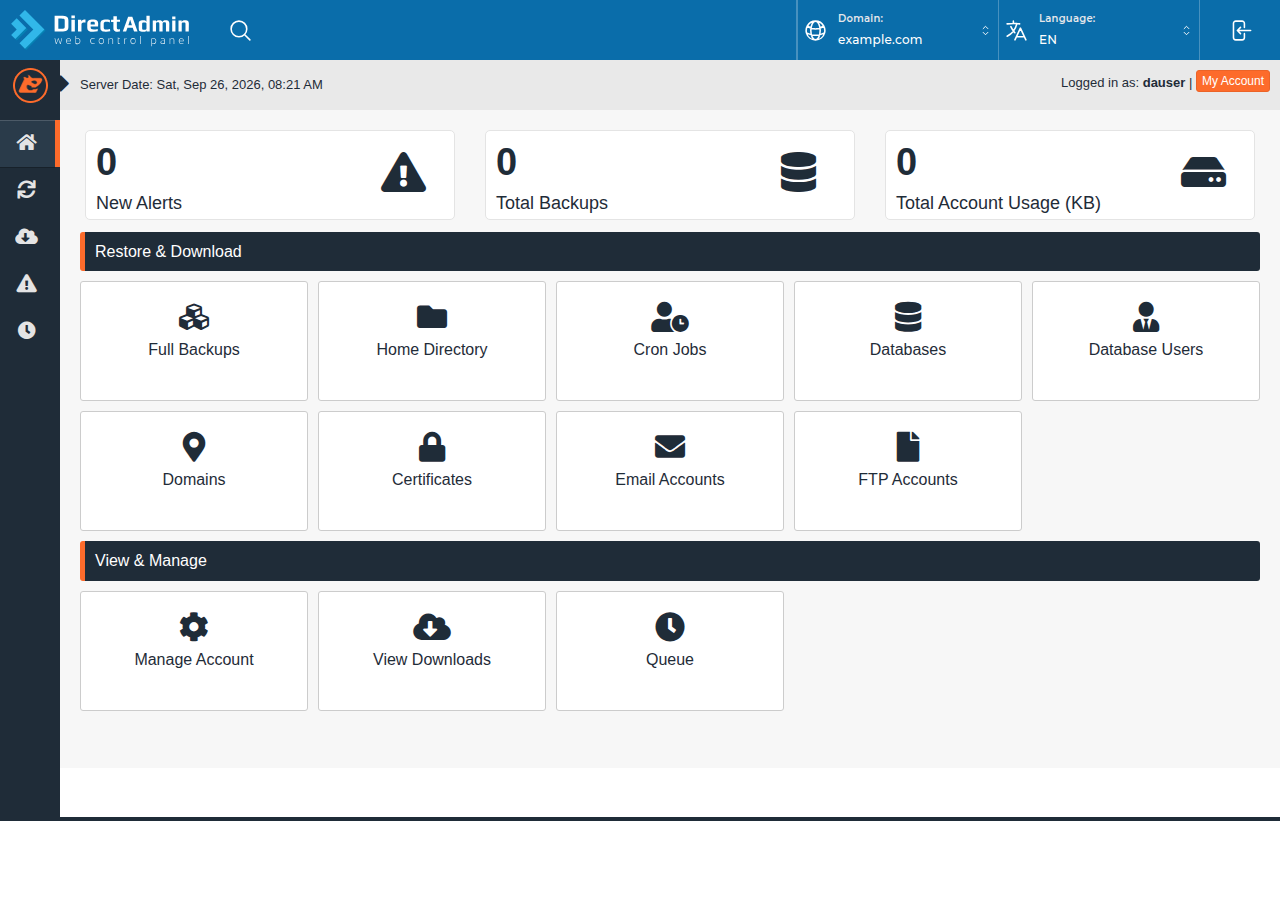
JetBackup 5 runs on our DirectAdmin servers with the same weekly schedule. Open the client's panel from List Users › Impersonate, then use JetBackup 5 there to restore or download. See restoring with JetBackup in DirectAdmin.
8. Domain India reseller hosting
Every Domain India reseller plan, cPanel/WHM or DirectAdmin, includes weekly JetBackup backups for every client account, free SSL and server security, with no backup set-up needed. Compare plans on the reseller hosting page.
Frequently asked questions
How are my reseller clients' accounts backed up?
JetBackup 5 backs up every account on Domain India's cPanel and DirectAdmin servers weekly, on Sunday, and keeps five copies. There is nothing to set up in WHM.
How do I restore a client's website as a reseller?
In WHM, open List Accounts and click the cPanel icon next to the client's account. In their cPanel, open JetBackup 5, choose what to restore and a backup date, and choose Restore.
Can I use Restore a Full Backup/cpmove File in WHM?
No. That is a server-owner function, and reseller accounts on Domain India's servers don't have it. Open a ticket if you need a whole account restored from a backup file.
Why can't I find Backup or Backup Wizard in cPanel?
They are switched off on Domain India's cPanel servers. Use JetBackup 5, in the Files section of cPanel, to restore or download backups.
Do reseller plans include daily or hourly backups?
No. Backups are weekly on every reseller plan, with five copies kept. Clients who change their sites often should keep their own copies as well.
Can my clients restore their own backups?
Yes. Clients open JetBackup 5 in their own cPanel or DirectAdmin panel and can restore or download files, databases and email themselves.
Ready to check your clients are covered? Open WHM from your hosting, try a test restore of one file, or read backup and restore with JetBackup. For anything WHM doesn't let you do, open a support ticket.
Send the domain, the cPanel username, what needs restoring and the last date it was right, and we will help you pick the right backup.
Open a ticket