Yes, you can run a Python web application, such as a Flask or Django site, on Domain India shared hosting if your account is on one of our cPanel or DirectAdmin servers. Both have a Python application tool that creates a virtual environment for your app and serves it on your domain through Phusion Passenger.
This page is the short answer. The complete walkthrough, including Django settings, databases, the SSH route and troubleshooting, is in How to deploy a Python app on shared hosting.
On cPanel, open Setup Python App, create the app, upload your code and requirements.txt, click Run Pip Install and restart. Passenger loads your app from a passenger_wsgi.py file that exposes a variable called application. DirectAdmin has the same selector; on Webuzo we couldn't confirm one, so ask support.
1. Where Python runs, and which versions
We checked our shared servers on 23 September 2026:
| Server | Python app tool | Python versions offered |
|---|---|---|
| cPanel | Setup Python App | 3.9, 3.11 and 3.12 |
| DirectAdmin | CloudLinux Python selector | 2.7, 3.8, 3.9, 3.10, 3.11, 3.12 and 3.13 |
| Webuzo | Not found | Ask support |
| Windows (Plesk) | Not covered | Ask support |
Pick the newest version your app supports. Python 2.7, 3.8 and 3.9 no longer receive security fixes, so don't start a new project on them.
2. The short version of the setup
- Open the tool.In cPanel, open Setup Python App in the Software section and click Create Application.
- Fill in the form.Choose the Python version, set the Application root to a folder outside
public_html(for examplemyapp), pick the Application URL, and set the startup file topassenger_wsgi.pyand the entry point toapplication. - Upload your codeand
requirements.txtinto the application root. Leave out any localvenvfolder. - Install and restart.Add
requirements.txton the app's page, click Run Pip Install, then Restart.
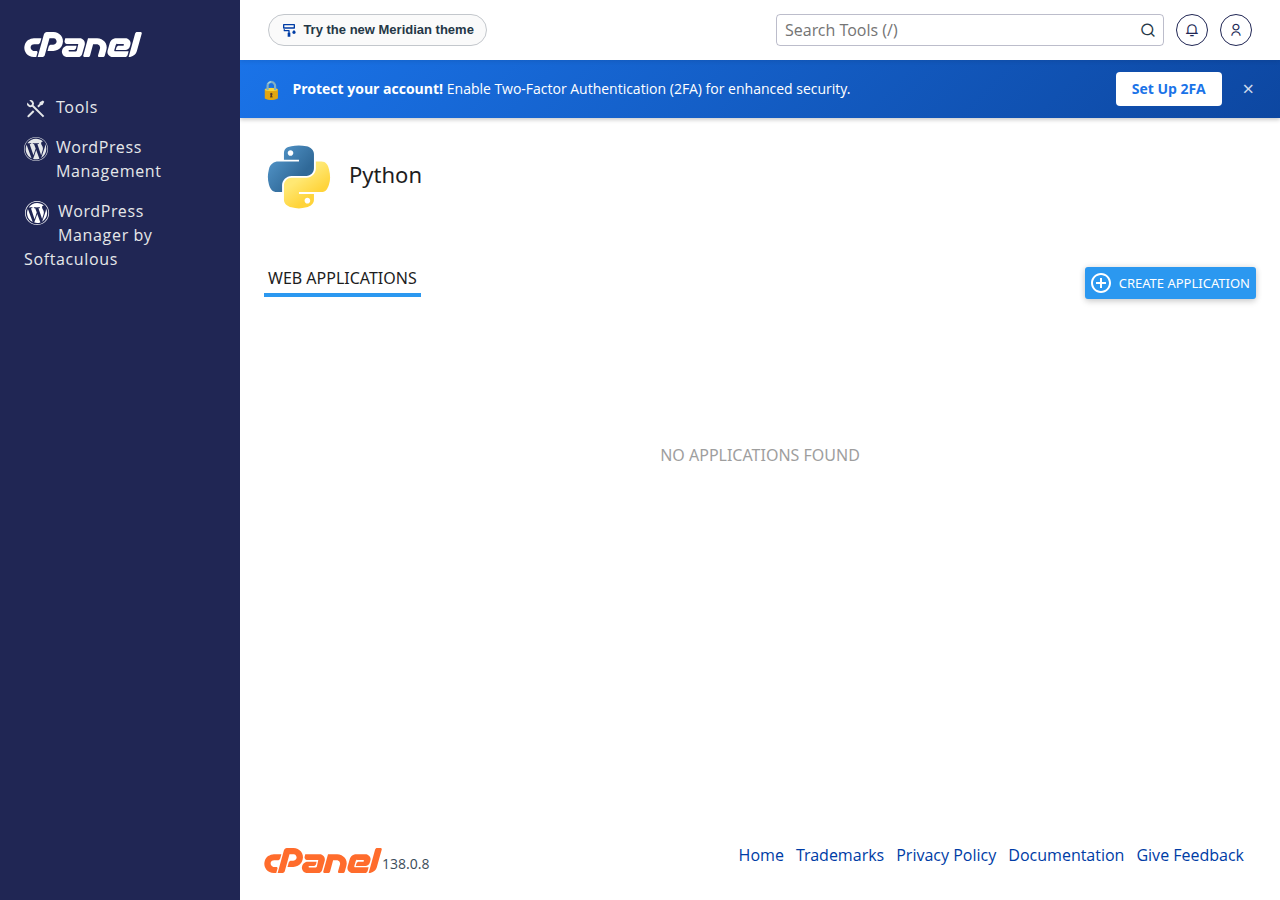
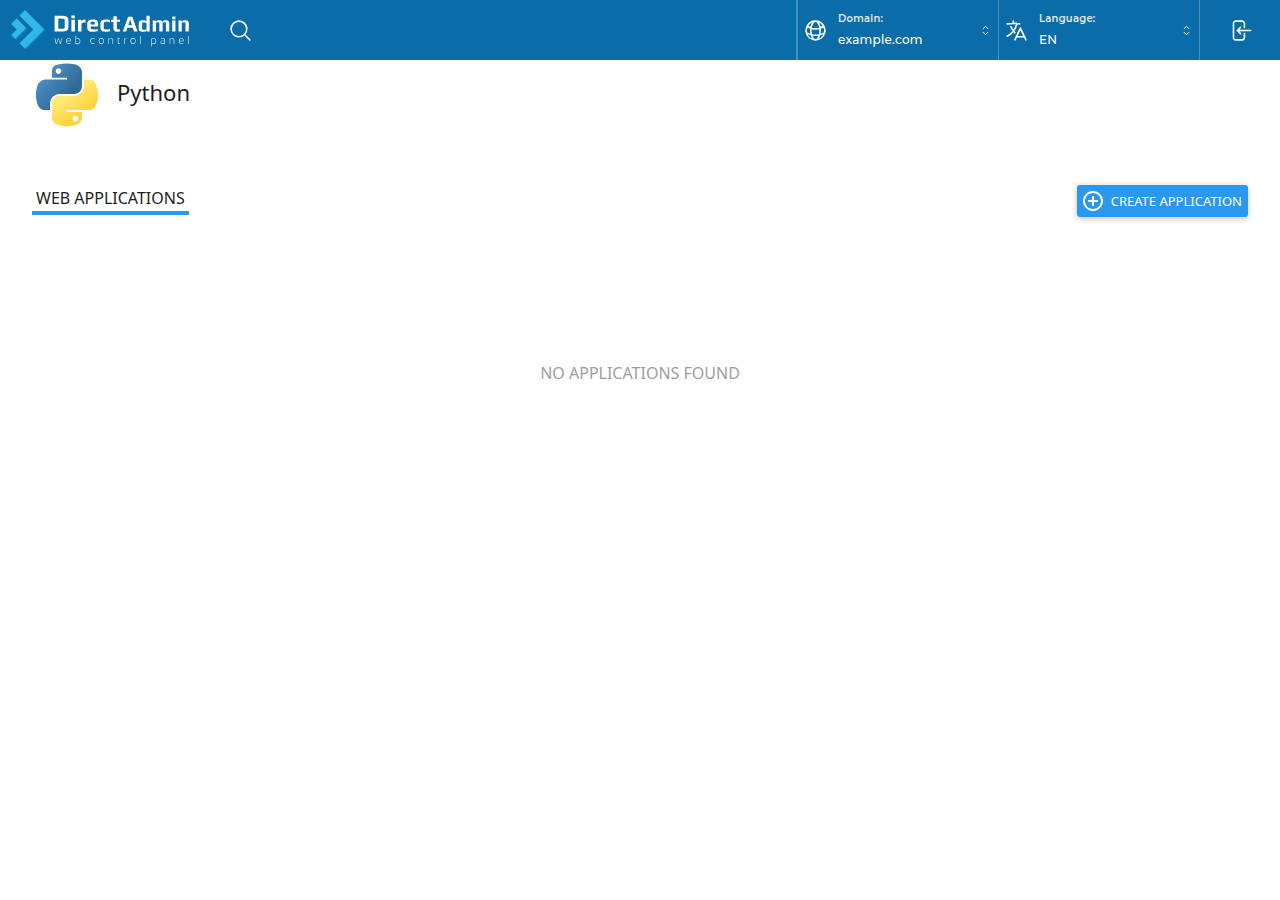
On DirectAdmin the fields are the same: type "python" in the Search for pages box at the top of the menu (Ctrl+J) and open Setup Python App.
3. The passenger_wsgi.py file
For a Flask app whose app object is in app.py:
import os
import sys

sys.path.insert(0, os.path.dirname(__file__))

from app import app as application
For Django, set DJANGO_SETTINGS_MODULE and import get_wsgi_application instead; the full guide has the exact file. You don't need Gunicorn or Uvicorn here: Passenger is the server. Put secrets such as SECRET_KEY in the Environment variables section of the app's page, then restart.
4. What shared hosting can't do
- WSGI only. Async servers such as Uvicorn are not how the tool runs apps.
- Resource limits apply. Your app shares your account's CPU and memory. See Understanding hosting resource limits.
- No background workers. Celery, schedulers and other long-running processes need a VPS.
- Some packages won't build. Packages that need system libraries may fail; choose one with a prebuilt wheel.
- SSH is optional and off by default. Jailed SSH access is available on every shared hosting plan (cPanel, DirectAdmin, Webuzo). It is off by default; ask support to enable it for your account. Login is by SSH key. See Enabling and accessing jailed SSH.
For databases, create a MySQL-compatible database in your panel and connect on localhost. See How to connect to the MySQL database.
5. When to use the App Platform or a VPS
For a production Python app, the App Platform runs your app from your own Dockerfile, deploys from GitHub or with a deploy token, and includes PostgreSQL and SSL. It has no SSH. See Getting started with the App Platform.
- 512 MB RAM per app
- 1 vCPU
- 5 GB NVMe SSD
- PostgreSQL Database
For root access, Uvicorn, Celery workers or system packages, choose a VPS.
Can I run Python on Domain India shared hosting?
Yes, on our cPanel and DirectAdmin servers, which have a Python application tool in the control panel. We could not confirm one on Webuzo, so ask support if your account is on Webuzo.
Which Python versions are available?
When we checked on 23 September 2026, cPanel offered Python 3.9, 3.11 and 3.12, and DirectAdmin offered 2.7 and 3.8 to 3.13. The control panel shows the current list when you create an app.
Can I host a Django or Flask site?
Yes. Both run as WSGI apps through a passenger_wsgi.py file that exposes a variable called application.
Can I run FastAPI with Uvicorn on shared hosting?
No. The shared hosting tool runs WSGI apps. For an ASGI server such as Uvicorn, use the App Platform with a Dockerfile, or a VPS.
Do I need SSH to install my requirements?
No. Add requirements.txt on the app's page and click Run Pip Install. Jailed SSH is available on request; it is off by default and uses key login.
Ready to deploy? Follow the full Python guide, compare App Platform plans, or ask us in a support ticket which option fits your project.
Deploy from GitHub or with a deploy token, with PostgreSQL and SSL included in every plan.
See App Platform plans