You can connect a GitHub repository to your Domain India cPanel hosting in two ways: with cPanel's Git Version Control tool, which needs no SSH for a public repository, or from a jailed SSH shell once support has switched SSH on for your account. This page covers the cPanel route step by step and sends you to the full Git guide for everything else.
In cPanel, open Git Version Control, click Create, paste your GitHub clone URL and choose a folder outside public_html. Commit a .cpanel.yml file to tell cPanel which files to copy to your site, then use Update from Remote and Deploy HEAD Commit after each change. You cannot install software on shared hosting, but you don't need to: Git is already available on our cPanel servers.
Every Git route on Domain India, including pushing to a bare repository over SSH, building locally, the App Platform and VPS, is in Deploying your website with Git. On DirectAdmin hosting, see Set up a GitHub repository for DirectAdmin hosting.
1. What you need
- A cPanel hosting account with Domain India. We measured on 23 September 2026 that Git Version Control is enabled on the standard cPanel plans and that Git is present inside the jailed shell.
- A GitHub repository. A public repository clones with no extra setup. A private repository needs an SSH key that GitHub trusts; ask support to help you set that up on your account.
- A
.cpanel.ymlfile in the root of the repository if you want cPanel to copy files into your website.
2. Clone your GitHub repository in cPanel
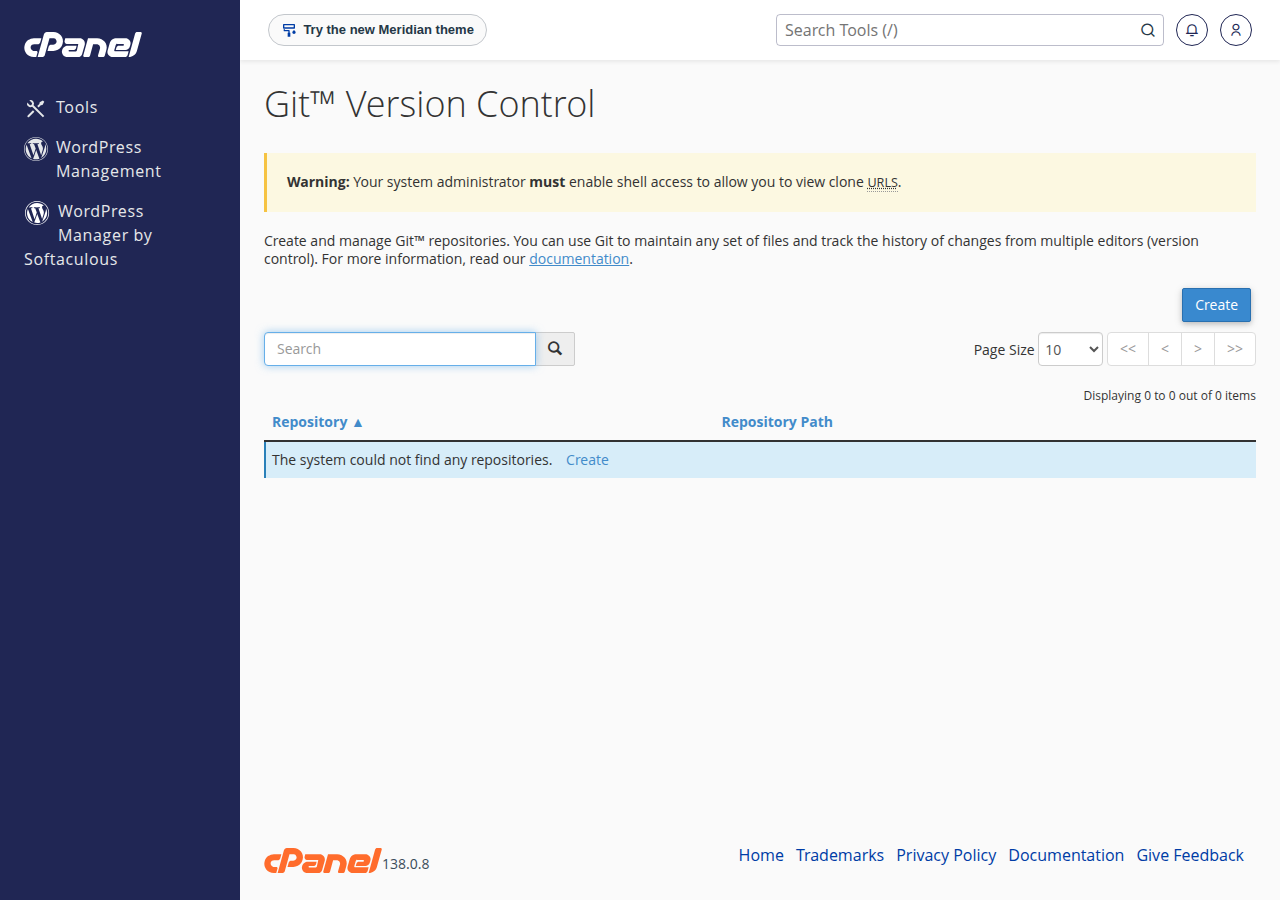
- Open the tool.Log in to cPanel (see How to log in to cPanel) and open Git Version Control in the Files section.
- Create the repository.Click Create, leave Clone a Repository on, and paste the clone URL from GitHub's green Code button.
- Choose the path.Set Repository Path to a folder outside
public_html, for examplerepositories/mysite, so nobody can download your.githistory from the web. - Name it and create.Give it a display name and click Create. cPanel clones the repository into your account.
3. Deploy the files to your website
cPanel copies files into your website only when the repository contains a .cpanel.yml file. A minimal one that publishes a public folder:
---
deployment:
  tasks:
    - export DEPLOYPATH=/home/USERNAME/public_html/
    - /bin/cp -R public/* $DEPLOYPATH
Replace USERNAME with your cPanel username, and public_html with the document root of an addon domain if needed. Commit the file and push it to GitHub.
Then, in Git Version Control, click Manage next to the repository and open Pull or Deploy:
- Update from Remote pulls the latest commits from GitHub.
- Deploy HEAD Commit runs the tasks in
.cpanel.yml.
cPanel deploys only when the repository has no uncommitted changes, so don't edit the cloned copy on the server.
4. Using Git from the command line
Jailed SSH access is available on every shared hosting plan (cPanel, DirectAdmin, Webuzo). It is off by default; ask support to enable it for your account. SSH login uses a key, not your password. Once it is on, you can run git pull in your repository folder, or set up push-to-deploy with a bare repository as shown in Deploying your website with Git. cPanel's Terminal also works only when shell access is enabled on your account.
Two things from older guides do not apply:
yum install gitneeds root access, which shared hosting doesn't have. Git is already installed.- Pushing from the server with your GitHub password no longer works: GitHub stopped accepting account passwords for Git over HTTPS. Push from your own computer, or use an SSH deploy key.
Composer isn't pre-installed on our shared servers, but over jailed SSH (on request) you can download composer.phar and run php composer.phar install; if it stops with a proc_open message, run it again with --no-scripts. Or run Composer and any npm run build on your own computer or in CI, commit or upload the finished files, and deploy those. See PHP disabled functions on shared hosting.
5. Deploy on every push
A GitHub webhook that calls a PHP script to run git pull cannot work on our cPanel servers, because shell_exec is disabled. If you want each push to deploy automatically, the App Platform deploys from GitHub with Deploy Now or from your CI with a deploy token, and a VPS lets you run any workflow you like.
Can I connect a GitHub repository to cPanel without SSH?
Yes. On Domain India cPanel hosting, the Git Version Control tool clones a public GitHub repository and deploys it from the panel. A private repository needs an SSH key that GitHub trusts; ask support to help set it up.
Do I need to install Git on my cPanel hosting?
No. Git is already available on our cPanel servers, and shared hosting has no root access, so commands such as yum install git do not work there.
Why does Deploy HEAD Commit do nothing?
cPanel deploys only when the repository contains a valid .cpanel.yml file in its root and the cloned copy has no uncommitted changes. Check both, then deploy again.
Is SSH included with Domain India cPanel hosting?
Jailed SSH access is available on every shared hosting plan. It is off by default; ask support by live chat or ticket to enable it for your account, and log in with an SSH key.
Can GitHub deploy to my cPanel site automatically on every push?
Not with a webhook script, because shell_exec is disabled on our cPanel servers. Use Update from Remote and Deploy HEAD Commit in cPanel, or use the App Platform or a VPS for deploy-on-push.
Ready to deploy? Read the full Git deployment guide, or ask for jailed SSH through a support ticket.
Connect a GitHub repository or use a deploy token, and your app is built and served over HTTPS.
See App Platform plans